Working with Subscriptions
A Chargebee subscription connects your customer to your products or services. It determines what your customer has signed up for and how often they're charged for it.
A subscription is created when a customer signs up for a plan. Any associated addons or coupons also become part of it. If the products are shippable, shipping orders are also created for the subscription.
A Customer record in Chargebee can have any number of subscriptions linked to it, each with its own trial period, pricing, payment options, and more.
Classic UI users can find the relevant content here.
Note
On your subscription's renewal date, Chargebee promptly initiates the renewal process.
Subscription Status
Future: Subscriptions scheduled to enter trial or active state on a specified future date.
In Trial: Active subscriptions currently in trial mode.
Active: Subscriptions that are active and charged based on plan, addons, and billing period.
Non-Renewing: Subscriptions scheduled to cancel and will not renew.
Paused: Active subscriptions that are temporarily stopped.
Canceled: Inactive subscriptions that will not renew. How charges, credits, and other actions are handled on cancellation can be configured.
What's in the Subscription Section?
This section lists all your subscriptions along with a summary of each subscription.

It also gives you options such as filtering views, sending emails, exporting to Excel, and downloading shipping labels.
You can perform actions such as delete, change term end, and cancel subscriptions by selecting the subscription. Admins can also perform Bulk Actions such as bulk delete, change term end for multiple subscriptions at once, and bulk cancel.

To perform these actions:
- Click the Bulk Actions (...) button.
- Select the customers and choose the operation to perform.
Delete: Deletes the selected subscriptions.
Change Term End: Changes the end date of the subscription. When you select this option, the Change Term End dialog opens. Enter the necessary details and click Apply Changes.
Cancel Subscription: Cancels the selected subscriptions. Enter the necessary details in the Cancel Subscriptions dialog and click Apply Changes. Read more on canceling subscriptions. To cancel subscriptions, select More > Cancel Subscription.
Creating Subscriptions in Chargebee User Interface
Click Create Subscription on the subscriptions index page to get started. Select the customer record to associate with the subscription.
Note
If you are creating a subscription for a new customer, click Create new customer. Fill in the customer details to create a customer record, then create the subscription.
Here are the details you need to fill out to create a new subscription:
Subscription Info
The ID field uniquely identifies the subscription. Refer to our API for more details.
The Subscription Info section captures information related to the plan you want the customer to subscribe to:
-
The Plan Name and Quantity fields are used to select the plan you are selling and the quantity. Both fields are required. You can add additional addons and coupons if applicable.
-
The Unit Price fields allow you to override the price of the plan and the addon selected for this subscription. This is only allowed in applicable cases.
-
You can also specify the PO Number in this section. Learn more here.
See also
- Plans and addons for more information on defining your products/services in Chargebee together with their pricing models.
- Refer to multi-decimal support for more information on charging your customers in fractional amounts or charging for fractional quantities.
If you select a tiered, volume, or stairstep priced plan or addon while creating or editing a subscription, you can see the price breakdown by clicking View tier breakdown below the plan.

Note
When creating a new subscription in your Chargebee user interface, the selected plan should have at least one trial day. Plans with zero trial days require credit card details to process the charge immediately.
Billing Info
The Billing Info section captures billing information related to the plan you specified and the customer's billing and shipping details:

Start Date/Time
Start Date/Time is when the subscription begins for the customer. It is a date or time depending on the billing mode of your site. You can set the subscription to start Immediately or Choose Date for when the subscription starts. The start date impacts the statuses the subscription can have:
Active: The customer is using the subscription and is paying for it. An invoice will be generated on the date/time the subscription status changes to Active. You can also set the start date/time in the past, as long as it falls within the current billing cycle. This is useful if you've already started providing the service but are creating the subscription in Chargebee later.
Future: The start date/time is in the future with respect to the date/time the subscription was created. The status will change to Active or Trial on the start date/time mentioned. An invoice will be generated on the date/time the subscription status changes to Active.
In Trial: On the start date/time, if the subscription has a trial period specified, then the status of the subscription will be "In Trial".
Free Period
While creating a subscription record, you can enable the Free Period setting to offer a fixed number of days, weeks, months, or years for the first billing cycle of the subscription, free of charge.

Note
- Contact Support to avail this feature for your Chargebee Billing site.
- Free Period is not supported when calendar billing is enabled.
- The Free Period can only be edited if the subscription is in trial.
Billing Cycles
This setting determines how many times a customer will be charged. You can choose between Fixed or Forever billing cycles.
To bill the customer until the subscription is canceled or paused, use the Forever cycle.
To bill the customer for a specific number of cycles, use the Fixed cycle. You can specify a value different from the number of billing cycles already configured in the plan. The value entered in the new subscription will override the value configured in the plan. More information here.
Auto Collection
Chargebee supports auto collection at both the customer and subscription levels.
The Auto Collection option determines whether payments for invoices generated for the subscription are charged automatically.
-
If Auto Collection is turned ON, Chargebee will automatically charge the customer's payment method (primary or the one assigned to the subscription) when a payment for the subscription is due.
-
If Auto Collection is turned OFF, Chargebee will not automatically charge the customer's payment method when a payment for the subscription is due.
If you haven't configured Auto Collection for the subscription, Chargebee will refer to the Auto Collection status at the customer level to decide when the charge needs to be collected. More on Auto Collection for customers.
Note
Configuring Auto Collection at the subscription level overrides the Auto Collection setting configured at the customer level.
Assigning Payment Method
If a customer has multiple payment methods available, Chargebee supports assigning a payment method exclusively to a particular subscription. If assigned, the payment method will be used for all charges against the subscription.
Can I include my Addons during sign up?
Yes. You can select recurring addons here. Non-recurring addons cannot be added to a plan with trial days.
Creating Subscriptions for Plans Without Trial Period
If your plan does not have a trial period, you can create the subscription by setting Auto Collection to OFF. Once the subscription is created, you can add card or bank details using the Add Card/Bank Account option in the subscription's details page.
Another way to create subscriptions for plans without a trial period is by using the plan's hosted page URL. This allows you to enter credit card details while creating the subscription.
Can I Edit an Existing Subscription?
When you open an existing subscription, you can view several details and perform various actions. The subscription provides details such as the plan subscribed to, payment method information, data acquired using custom fields, unbilled charges, configurations, and more. You can also view subscription-related information, non-recurring charges, address, current term charges/credits, invoices, and transactions. (The address section appears only if you add the buyer's address; non-recurring items appear when a one-time charge has been applied using Add One-Time Addon).
You can make changes using the Action panel on the right.

The Action panel lets you perform the following changes:
- Edit Subscription
- Create and Send a Quote
- Request Payment Details
- Create Quick Charge
- Add One-Time Addon
- Add Coupon
- Bill Future Renewals
- Pause/Resume Subscription
- Cancel/Re-Activate Subscription
- Edit Next Billing Date
- Delete Subscription
Edit Subscription
You can change one or more of the following aspects of a subscription:
- The plan subscribed to
- The price of the plan (only if price overriding is enabled)
- Addons attached to the plan
- Plan/addon quantities
- Coupons or coupon codes
- Number of billing cycles
- PO Number
You can also choose to apply the changes immediately (charges may be prorated), on the next renewal, or schedule them for a specific date.
You can access the Edit Subscription option from the following places:
-
Customer-facing:
- Portal
-
Merchant-facing (in Chargebee user interface):
- In the customer details page
- In the subscription details page, on the Actions panel
Applying Changes
In the Apply Changes section, you can choose to bring the changes into effect at one of three times:
- Immediately
- During next renewal (at the end of term)
- On a specific date
Immediately applying the changes also provides the option to Apply prorated credits and charges to any charge generated because of the changes made to the subscription.
During next renewal schedules the changes for the end of term.
On a specific date schedules the changes to take effect only on the set date. This makes the prorate credits and invoicing option unavailable and takes into account the proration setting and unbilled charges setting configured in your Chargebee site. This feature can be enabled only on request; contact support to get it enabled for your site.
Note
- Any scheduled change will be overridden if a new change is scheduled. Contact support if you want Chargebee to notify you about the removal of scheduled changes.
- APIs carrying parameters for proration and unbilled charges will not work for scheduled changes.
See also
Plans and addons for more information on defining your products/services in Chargebee together with their pricing models.
Removing Mandatory Add-ons
While updating a subscription record via Chargebee Billing User Interface (UI) or API, you can have the mandatory addons associated with the old plan removed automatically by enabling the setting Remove mandatory addons from old plan during subscription plan update.
To enable this setting on your Chargebee Billing site, follow the steps below:
- Click Settings > Configure Chargebee > Billing LogIQ > Customers & Subscriptions > Update Subscription.
- Click to enable the setting Remove mandatory addons from old plan during subscription plan update > Apply.
After the setting is enabled, mandatory addons associated with any old plan will be removed automatically during subscription updates done via Chargebee Billing UI or API.
Note
Enabling this setting does not remove the mandatory addons automatically when your customers update subscriptions via the self-serve portal. They need to remove the mandatory addons manually. This allows your customers to make informed decisions while modifying subscriptions.
Request Payment Method Details allows you to send an email with an auto-generated link that the subscriber can use to add or update their card details. If you use Chargebee's single-page checkout, make sure you've configured the Update Payment Method Page redirect URL that users will be redirected to after successfully updating their payment method details.
Create and send a quote allows you to create a quote for changing the subscription. Learn more.
Add Card/Bank Account allows you to add a new credit card number or bank account if Allow customer to pay via their bank account is enabled. You can also update the details after they are added.
Add shipping address is used to enter the customer's shipping address. You can only change the data in the Label field once, during the first attempt to add a shipping address. You can also delete the address and add a new one if needed.
Add/Update billing address: If you've enabled any of the billing address fields, you will see this option and can use it to add or edit your customers' billing address.
Cancel/Reactivate Subscription can be used to cancel or reactivate a subscription. You can cancel a subscription immediately, at the next renewal, or on a specific date. Learn more.
Create Quick Charge lets you add an additional charge to the subscription. It is a one-time charge and does not recur. Learn more.
Add One-time Addon can be used to include an additional non-recurring addon to the subscription. Learn more.
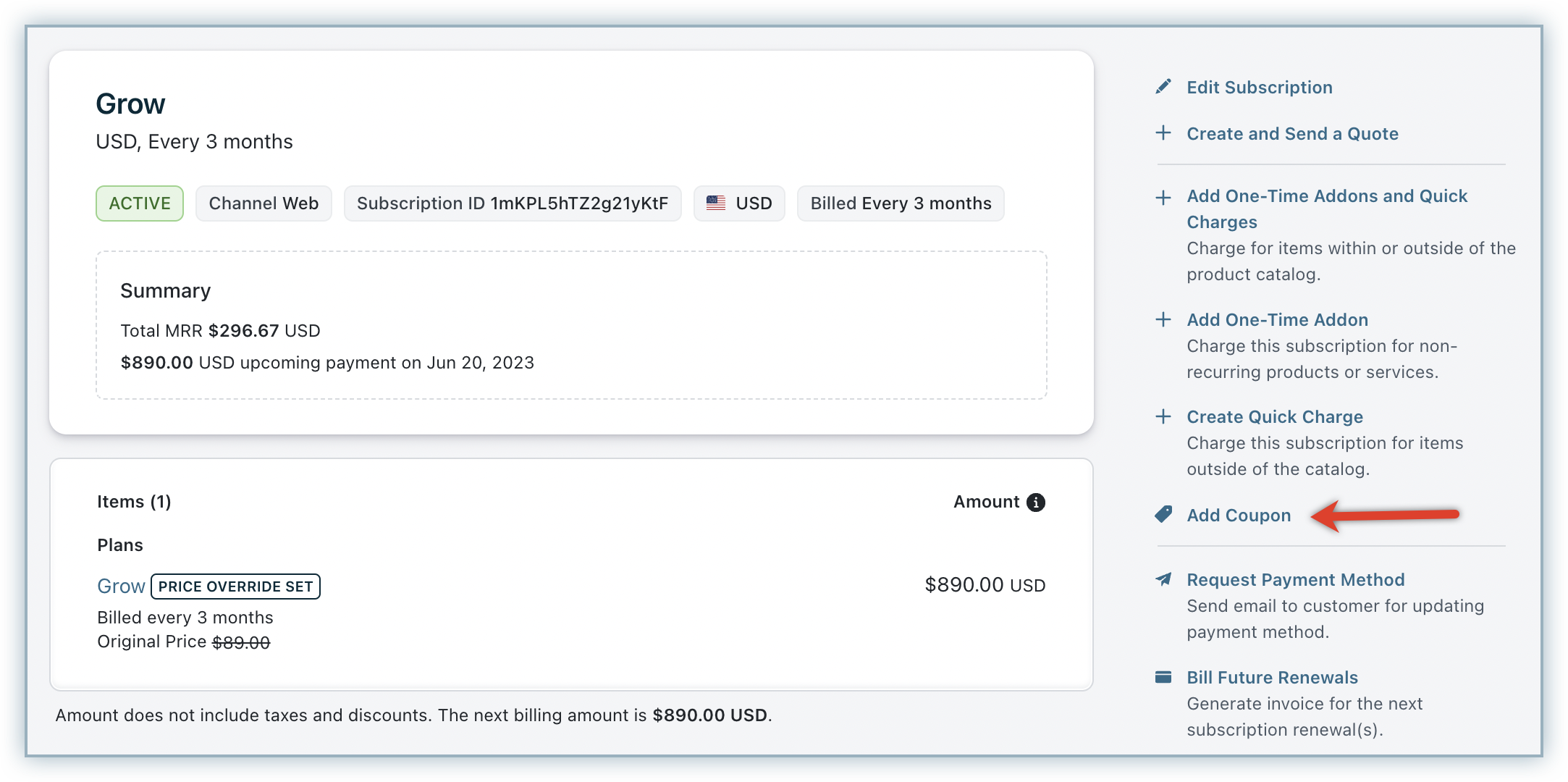
Add Coupon can be used to apply and redeem additional coupons on an existing subscription. Only coupons applicable to the subscribed plan are displayed.
Edit Start Date/Time appears only when the subscription is in the "Future" state. You can change when the subscription should start using this option. If you need to start the subscription immediately (or on the current day, if your Chargebee site is on day-based billing mode), you can choose the current time or date.
If the subscription was created through the API and a trial period was specified, changing the start date will automatically remove that trial period. In this case, only the plan's trial period (if present) will be considered. Otherwise, the subscription will go into the "Active" state.
The Edit Next Billing Date option appears on active subscriptions and is used to change the next renewal date or time. You can change the date or time to a later or earlier point. The subscription will update on the specified date or time.
Edit Trial End Date option appears only on trial subscriptions. You can use this to extend the trial period if needed.
The subscription details page also has an Activity log that shows the subscription's history.
Events such as sign up, cancellation, and reactivation are shown here.

Use Comments to add information specific to a particular subscription or as a tag to help you find subscriptions using filters. The comments section appears at the bottom of the subscription and is available for subscriptions, invoices, transactions, plans, addons, and coupons.

Can I change/override the plan price for a particular subscription?
Yes, but price overriding in Chargebee must be enabled first.
Also, just like when changing the price of a plan, price changes for subscriptions are only permitted when the plan pricing model for the subscription is flat or per unit.
You can change the price for a new subscription while creating it or for an existing subscription by updating it.
To change the price for an existing subscription:
- Navigate to the subscription details page and click on Edit Subscription on the Actions panel.
- On the page that appears, you can change the price and, if applicable, the quantity associated with the subscription.
If proration is enabled, a new invoice is generated for the subscription at the new price. Refundable credits are issued for the remaining period of the subscription at the old price and applied to the new invoice.
Deleting a Subscription
To delete a subscription in Chargebee, open the specific subscription's details page and click the Delete Subscription option available on the Actions panel.
This operation is irreversible—all data related to the subscription, such as transactions and invoices, will be deleted.
The numbers in the following reports will be modified when a subscription is deleted:
- Payments
- New Revenue
- Signups
- Activations
- Cancellations
- Refunds
Note
The option to delete a subscription is available only for the Admin role.
You can also delete a subscription using the Delete a Subscription API.
See also
Finding subscriptions
You can search for subscriptions using name or ID, or by sorting the list based on display name or date in the Chargebee user interface.
An advanced filter option is also available to make your search easier.
Invoices and Transactions
The History section displayed under a subscription contains details of the invoices and transactions related to the selected subscription. All payments related to the subscription are recorded here.

Read more on invoices and transactions.
Automatic payment collection rules
Three settings govern the automatic collection of payments for invoices using online payment methods:
- Auto-Collection: Can be configured at the customer and subscription levels, with the latter taking precedence.
- Payment collection when payment method is added toggle: Can be configured by navigating to Settings > Configure Chargebee > Billing LogIQ > Payments.
- Dunning: Automatic retries for payment failures.
The following table shows how these settings work together with invoice and subscription statuses.
| Payment collection when payment method is added toggle | Auto-Collection | Invoice Status | Subscription Status | Action |
|---|---|---|---|---|
| Disabled | On or Off | Payment Due | Any | Payment collected on next dunning retry. |
| Enabled | On or Off | Payment Due | Any | Payment is collected immediately even if the next dunning retry is only due later. |
| Enabled or Disabled | Off | Posted | Any | Payment is not collected. |
| Enabled or Disabled | On | Posted | Any | Payment is collected at the end of the payment term. |
| Enabled or Disabled | Off | NA | In trial | Payment is not collected. |
| Enabled or Disabled | On | NA | In trial | Payment is collected at the end of the trial period. |
FAQs
1) Can I add coupons to subscriptions on a customer's request?
Yes, you can add coupons to a subscription in Chargebee at a customer's request.
There are three scenarios where you can add a coupon:
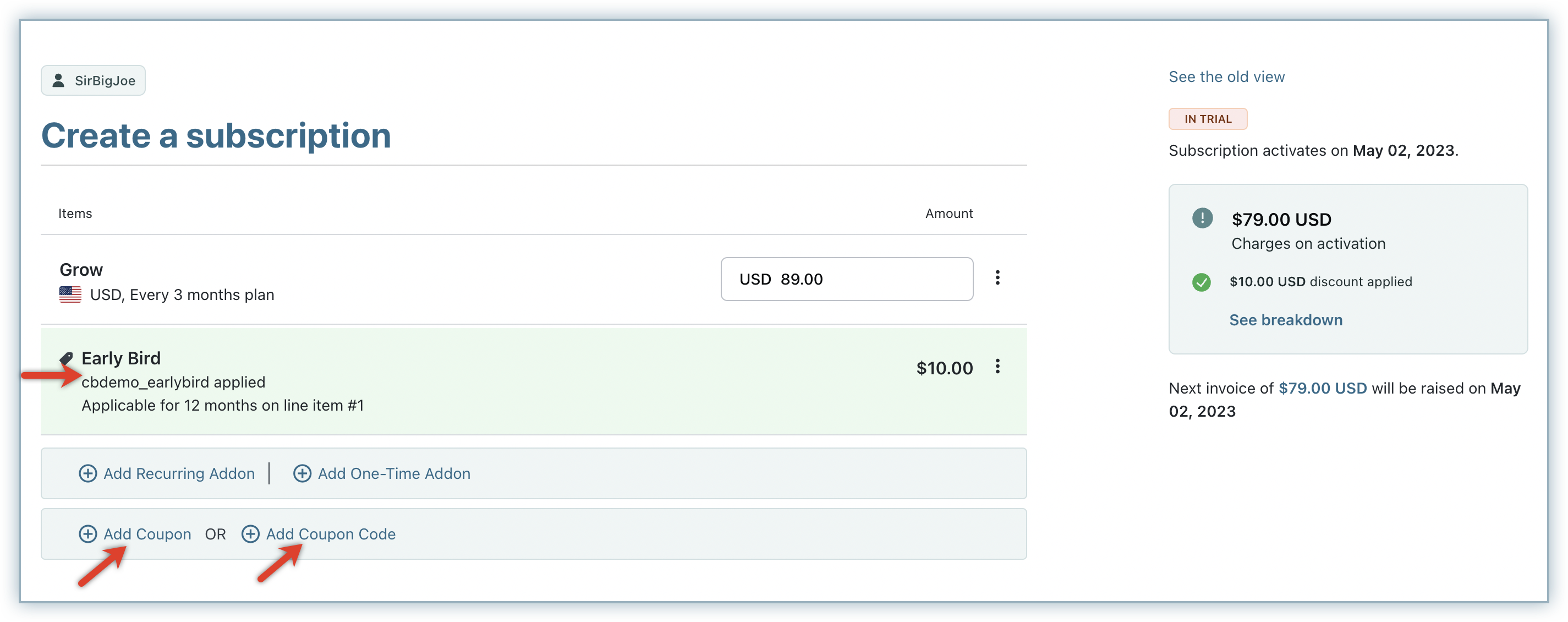
- While creating a subscription: If you are adding a coupon or coupon code on behalf of your customer while creating a new subscription, navigate to Subscription Info in the Create Subscription page, and you will find the option to Add Coupon/Coupon Code.
- While changing a subscription: If you're applying the coupon on your customer's behalf during a subscription change, you will find the option on the Change Subscription (Subscription > Edit Subscription) page.
- Adding the coupon/coupon code to the subscription: If you're adding the coupon or coupon code for the customer at any point in the billing cycle, navigate to the respective subscription and click Add Coupon to add the coupon or coupon code.
2) Is it possible to send a quote to a customer for review before signing up?
Yes, enable quotes in Chargebee to send pricing quotes or proforma invoices to your customers.
3) Why can't I find a way to add the time when I specify details such as "subscription start date" or "change next billing date"?
The billing mode of your Chargebee site governs whether billing is done to the calendar day or to the millisecond. If you have day-based billing mode set for your site, you will not be able to make changes to billing times with a granularity less than a calendar day.
Articles & FAQs
Show more
Was this article helpful?