Multicurrency Pricing
Chargebee's Multicurrency feature provides you with the option of creating Plans in multiple currencies, thus allowing your customers to pay in their local currency.
Prerequisites
If you are an API user, this feature requires you to pass the currency_code input parameter for some of our API methods before enabling it on your Chargebee site, failing which errors will occur. To be able to do this you need to upgrade to API version V2 if you are on our older version.
Configuring Multicurrency
See also
Note
Some features are available only in selected plans. To know more, visit Chargebee's Plans and Pricing page.
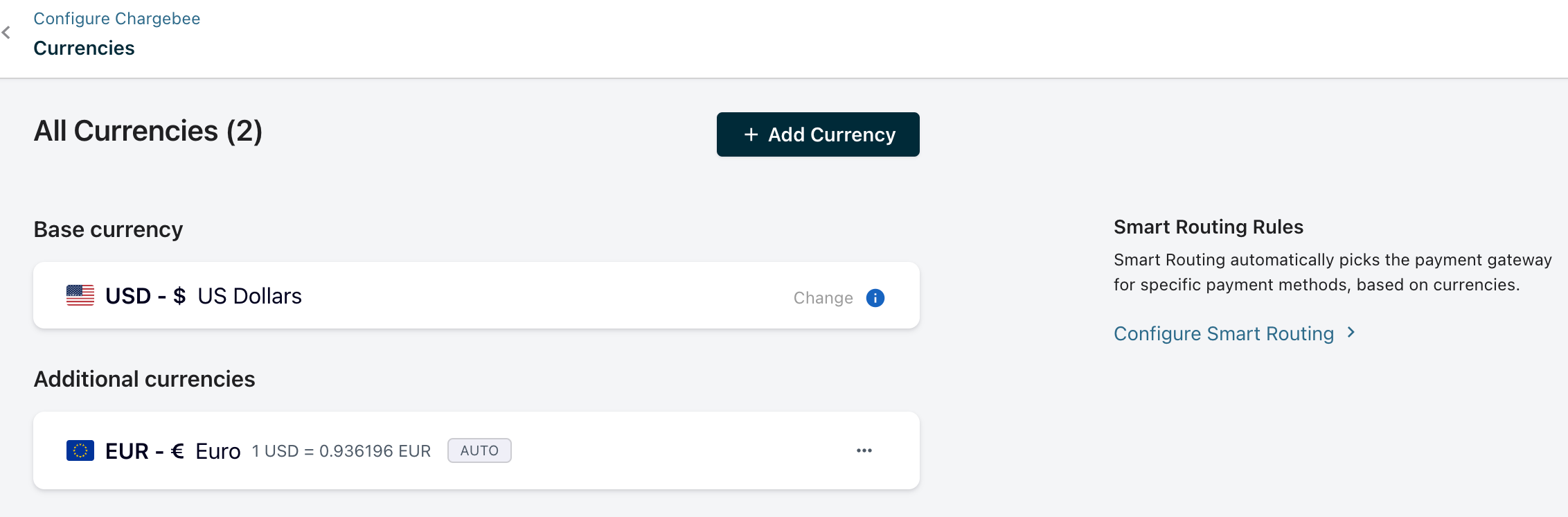
The Base currency is your default currency, and will also be used as your reporting currency. Other currencies that you transact in will be under Additional Currencies.
1. Adding and Managing Currencies
-
Go to Settings > Configure Chargebee > Currencies and under Additional Currencies, click Enable Multicurrency
-
Click Add Currency and select the currency.
-
You must choose a way to set the exchange rate against the base currency. The rate can be either set manually or you can let Chargebee handle it.
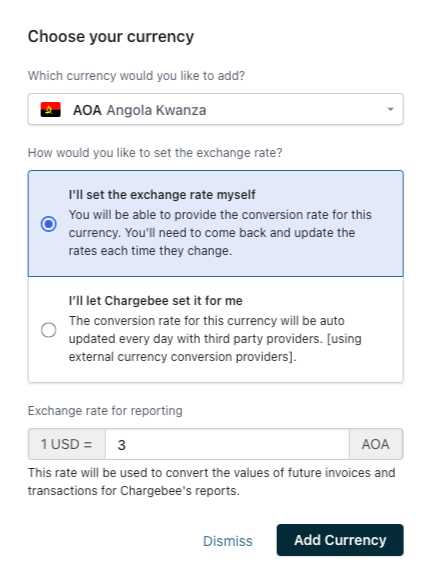
-
You can modify the settings by clicking on Manage under the more options menu for the currency.

-
-
When the exchange rate is set manually for a currency, you can also schedule a change in the rate to happen at some time in the future:
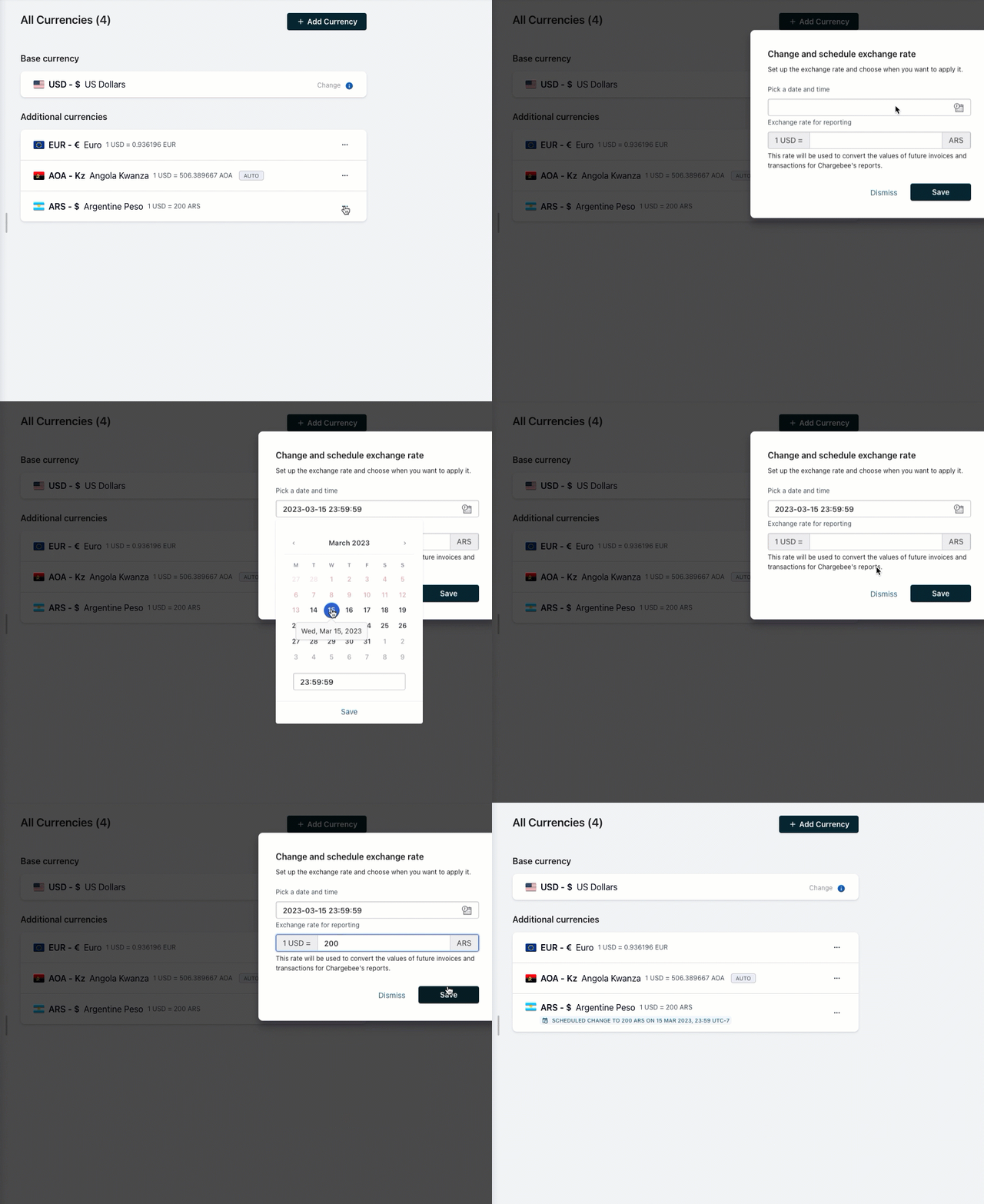
- The option to remove a set schedule is also found at the same location.
Note on exchange rates
Transactions made in the additional currencies will be converted to the base currency using the exchange rates that you configure in them, for reporting purposes. Learn more.
If you choose Auto as the Exchange Rate Type, Chargebee uses the exchange rates available with currencylayer and Open Exchange Rates.
Gateways and Multicurrency Support
Some gateways support transactions in multiple currencies and others don't. We recommend checking with your gateway to ensure that every transaction associated with the currencies you have enabled in your site can be processed:
-
If your gateway requires you to configure more than one account to process multiple currencies (this is the case with Authorize.Net for example), you can connect them all to Chargebee. Once connected, make sure you configure rules to specify which account is associated with a payment method type and currency at Chargebee's page (Settings > Configure Chargebee > Payment Gateways > Manage Rules).
-
If your gateway provides you with multiple merchant account IDs rather than multiple accounts to handle transaction in different currencies (as is the case with Braintree), please contact Chargebee Support with a list of your merchant account IDs and details of which merchant account ID you would like to associate with a currency enabled in your site.
2. Setting up your Product Catalog
The additional currencies that you've set up will appear for selection when you create your Plans/Addons/Coupons.
If you offer the same Plan in various currencies, you need to create the Plan for each of the currencies. This can be easily achieved using the Clone Plan option.
Note
- For coupons, the option to set currencies will appear only when you set the Discount Type to Fixed Amount.
- If you want to link a Plan/Addon to a Coupon, both need to have the same currency configured.
Subscriptions
The currency of the Subscription depends on the Plan you select while creating the Subscription. Invoices generated for the Subscription will be in the same currency too.
Note
- You will not be able to change the currency for existing subscriptions. If you want to change the currency for a Subscription, you need to cancel it and create a new one with the required currency.
- The currency of the Subscription created via a Hosted Page checkout will be based on the currency of the Plan selected by the Customer.
Customers
You can have credits, payments, invoices, and subscriptions of multiple currencies for your Customers.
The currencies that you've set up will appear for selection when you add/deduct credits or payments.
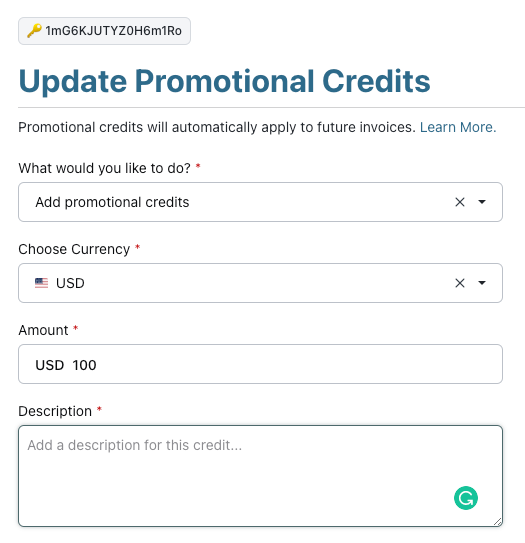
Classic UI users
The currency selector is displayed in Classic UI as shown here:

In the case of applying credits or payments on invoices, the currency of the credits/payment being applied and that of the invoice should match.
Reports
Refer to this for details on exchange rate calculations in RevenueStory.
FAQ
1. How can we change the base currency in Chargebee?
Make sure that the currency that you want to use as base currency is added to the list of currencies in your Chargebee site. Learn more about adding currencies.
Then, contact support to change the base currency of your site.
See also
API Reference
Was this article helpful?